Stop early if the face already looks soft at full size.
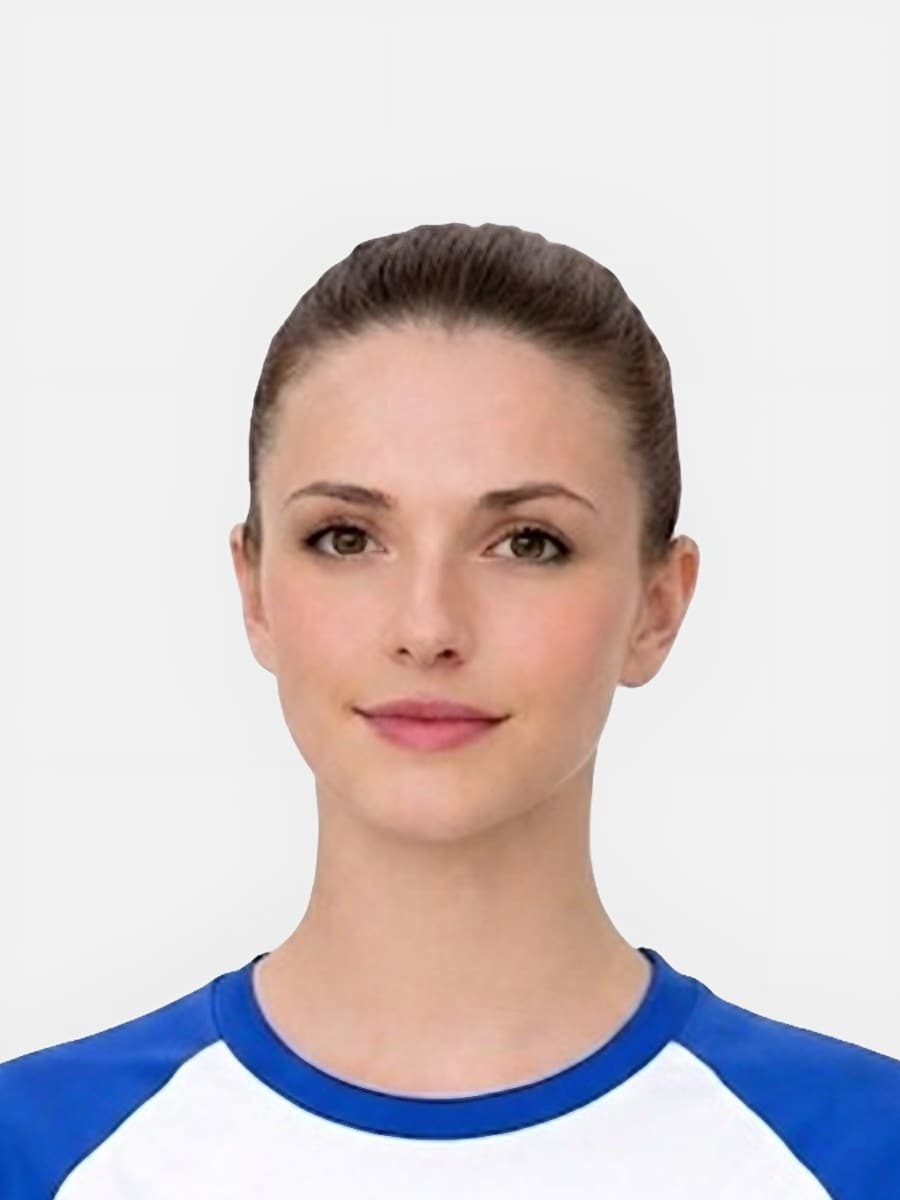
Screen the current photo before you choose a package
Use the original image, check the visible risks first, and decide keep versus retake before checkout.
Go deeper only when one specific issue is still unclear
Move into the narrower guide when the real uncertainty is rules, crop, or a likely rejection rather than the whole workflow.
Choose the next route only after the photo looks usable
If the image looks workable, continue to the final photo flow. If the route is still unclear, compare digital upload, photo code, or baby-photo guidance before checkout.
Quick checklist
Use this short list to decide whether the current photo is worth continuing with.
- Use the checker when the current image is close but uncertain.
- Retake first if the face is obviously blurred, blocked, shadowed, or cropped out.
- After a usable preview, choose digital upload, photo code, or print-ready output based on the application route.
- Read service standards and photo handling guidance if you need trust details before continuing.
Step by step
Follow this sequence to keep the workflow clear and reduce avoidable mistakes.
- 1
Upload the source photo
Use the image you plan to submit or convert into a final passport photo output.
- 2
Review visible problems
Look for crop, background, lighting, blur, head-size, and route-choice problems.
- 3
Fix or retake if needed
Retake the source photo when the issue is blur, glare, hidden eyes, or a poor original setup.
- 4
Continue only when the route is clear
Move to the paid output only when the preview and required output type both make sense.
Common mistakes
These are the errors most likely to waste time or trigger a preventable rejection.
- Treating a preview check as an official acceptance decision.
- Uploading a weak source image that should be retaken before any paid route.
- Choosing a code or print route before confirming the application actually needs it.
- Forgetting that the checker is only useful if the source photo still has enough detail and crop room.
Checker searches are close to action
Organic Positions shows the checker page is one of the earliest proven visibility points. Keep it as a checker, not another generic requirements page.
- Use this page when the user already has a source image and wants to know whether it is worth keeping.
- Send digital-file users to the digital page only after the photo looks usable.
- Send code users to the code page only when the application asks for a code.
- Send weak images to retake or rejection guidance instead of pushing checkout.
What to do after the checker result
A checker page should provide a clear next step so users do not return to search results.
- If the photo looks usable and the route is digital upload, continue to the digital passport photo route.
- If the route asks for a code, read the photo code page before buying.
- If the issue is background, crop, glare, or blur, use the relevant checker or rejection page.
- If the user is unsure which output is needed, use the output comparison page.
Keyword Gap coverage: check passport picture, photo check online, and keep-or-retake searches
Checker-intent terms are high value because users already have a source image and need a decision before paying.
- Use this page for passport photo checker online, check passport picture, passport photo check online, and check passport picture before paying.
- Use rejection pages when the user already knows the fault: background, blur, shadows, glare, crop, face position, or head size.
- Use requirements pages when the user has not taken the photo yet and needs the rules first.
- Use output comparison when the photo looks usable but the route is unclear.
Checker conversion path
The checker should reduce anxiety and lead users to the right next step.
- If the image looks usable, continue to create the final passport photo.
- If the image has a visible issue, use the relevant rejection guide.
- If the image is too weak, retake before paying.
- If the route is unclear, compare digital, code, and print options first.
Search Console opportunity: checker queries with impressions
Search Console shows checker queries getting impressions and some clicks, but still outside the strongest result positions. This page needs to answer the check-before-paying intent faster than a generic passport photo page.
- Use this page when the user already has a photo and wants to know whether it is worth continuing with.
- Answer the practical question first: crop, background, lighting, blur, glare, face visibility, and output route.
- Keep the CTA focused on a free check rather than a paid package decision too early.
- Route unclear users into requirements, rejection help, digital upload, code, or print only after the photo itself looks workable.
What the checker should help users decide
A stronger checker page should reduce uncertainty, not imply official approval.
- If the image is sharp, centred, evenly lit, and has a plain background, continue to the main online route.
- If the image is almost right but has one visible issue, use the relevant rejection or checker guide before checkout.
- If the image is blurred, dark, heavily shadowed, or tightly cropped, retake before paying.
- If the image looks usable but the application route is unclear, compare digital file, photo code, and printable output before buying.
What the free checker should decide before payment
Search Console has repeatedly shown checker impressions with weak ranking. This page now makes the checker intent explicit: decide whether the source image is worth continuing with before checkout.
- Check whether the face is clear, centred, evenly lit, and not hidden by glare or hair.
- Check whether the background is likely to need cleanup or a full retake.
- Check whether there is enough space around the head for a compliant crop.
- Only move towards a paid output after the preview looks usable.
Checker result: what to do next
Users searching for a checker often leave if the next step is vague. The page should route them to the correct commercial path without pretending the checker is official approval.
- If the source image looks usable, continue to create the final passport photo.
- If the application asks for an upload file, use the digital passport photo route.
- If the application asks for a code, read the passport photo code guidance first.
- If the image has a visible fault, use the rejection guide before paying again.
Why a checker can still recommend a retake
This builds trust and reduces refund risk by explaining when software cannot rescue the photo.
- Blur, closed eyes, hidden chin, or cut-off hair usually need a new source image.
- Strong glasses glare or shadow across the eyes should be fixed by retaking.
- A background can often be cleaned, but severe lighting problems may remain visible.
- A preview is useful because it catches many of these issues before checkout.
What the free checker should decide
Checker searches are close to conversion, but the page must still help users decide whether the source photo is worth continuing with.
- Continue when the face is clear, the photo is sharp and there is enough room to crop.
- Retake when the head is cut off, the image is blurred or the background is too busy.
- Use the code route only if the application asks for a passport photo code.
- Use the digital route when the application asks for a direct upload file.
After the checker result
The next step should match the user’s application route rather than pushing every visitor into the same output.
- Digital file: use the digital passport photo page.
- Photo code: use the passport photo code page.
- Paper output: use the printable passport photo page.
- Unclear rules: review requirements before paying.
Verified post-purchase feedback
Public customer feedback
Real ratings from completed orders, shown only when the customer allowed public display.
A clearer review summary for high-intent visitors who want fast proof before checkout.
4.8
Excellent
Based on 18 public reviews
All visible reviews come from verified post-purchase submissions.
These comments come from completed orders where the customer allowed public display.
Excellent
Digital Photo + Photo CodeDigital Photo + Photo Code
Useful next routes
Passport photo searches often mix requirements, checker, digital upload, code, and privacy questions. These related routes help you choose the right next step without relying on a government affiliation claim.
FAQ
Does the checker replace an official passport decision?
No. It helps you screen common photo issues before payment. Official passport decisions remain with the relevant application route.
What should I do if the checker shows a framing or background problem?
Use the rejection or requirements guides to identify the issue. If the source photo is weak, retaking is usually better than trying to force a final output.
Can I check a photo before choosing digital, code or print?
Yes. That is the purpose of the checker route: decide whether the photo is worth keeping before choosing the final output.
Is the passport photo checker the same as official approval?
No. It helps screen common visible issues before checkout, but the official application route makes the final decision.
What should I do if the checker suggests the photo is risky?
Retake the photo if the issue is blur, hidden face details, strong shadow or a crop that cuts off the head or chin.
Can I use the checker before choosing a photo code?
Yes. Check the source photo first, then choose a code only if your application route asks for one.
Should I use the checker before paying?
Yes, if you are unsure about background, crop, glasses, shadow or head size. The checker route is designed to screen the source image before a final paid output.
Does the checker replace the passport application?
No. It helps prepare and review the photo. The official passport application is still completed separately.
Why use a passport photo checker before paying?
It helps catch obvious source-photo problems before you choose a paid digital, code, or print-ready output.
What should I do if the checker shows a borderline photo?
Retake the photo if the face is blurred, cut off, badly lit, or partly covered. If the source image is usable, choose the output route your application needs.
What should I do if the checker says the photo looks usable?
Choose the output route your application needs: digital upload, photo code, or print-ready output.
What should I do if the checker shows a serious issue?
Retake first if the face is blurred, hidden, or cropped off. These problems are usually not safely fixable.
Is the free passport photo checker the same as official approval?
No. It helps screen the photo before payment, but the official application system makes the final decision.
Can I use the checker before deciding between digital, code, or print?
Yes. Check the photo quality first, then choose the output route your application asks for.
What should I do if the checker shows a problem?
Use the relevant rejection or requirements guide to decide whether to retake the photo or continue with a corrected preview.
Does a free checker mean the final photo is already bought?
No. The checker is a screening step. Users should continue only when the preview and output route make sense for their application.
What should I do if the checker suggests a problem?
Retake obvious blur, blocked face or cut-off head issues first. If the photo is close, use the relevant rejection guide before choosing a final output.
Ready to start
Prepare your photo before you submit it
Use the upload flow when you already have a source image, or keep exploring the guides if you still need to fix the setup first.