Digital Photo + Photo Code
Most Popular
£4.99
- HD digital file (JPEG/PNG)
- UK photo code for online applications
- Instant download
- Acceptance guarantee coverage
Use this guide to understand the practical photo decision for this route, what this independent service can help with, and when to check official instructions.
You can resize a passport photo when the source image is already sharp, well lit, and leaves enough room for a cleaner crop. If the photo is blurry, dark, tilted, or already too tight, resizing is usually the wrong fix.
Independent resize guide. It helps users decide whether the image can be salvaged with a cleaner crop, but it is not an official approval tool.
Related guidance: UK passport photo size · change photo for passport · head-size rejection guide · free passport photo checker · service standards
Most Popular
Complete package with print-ready files
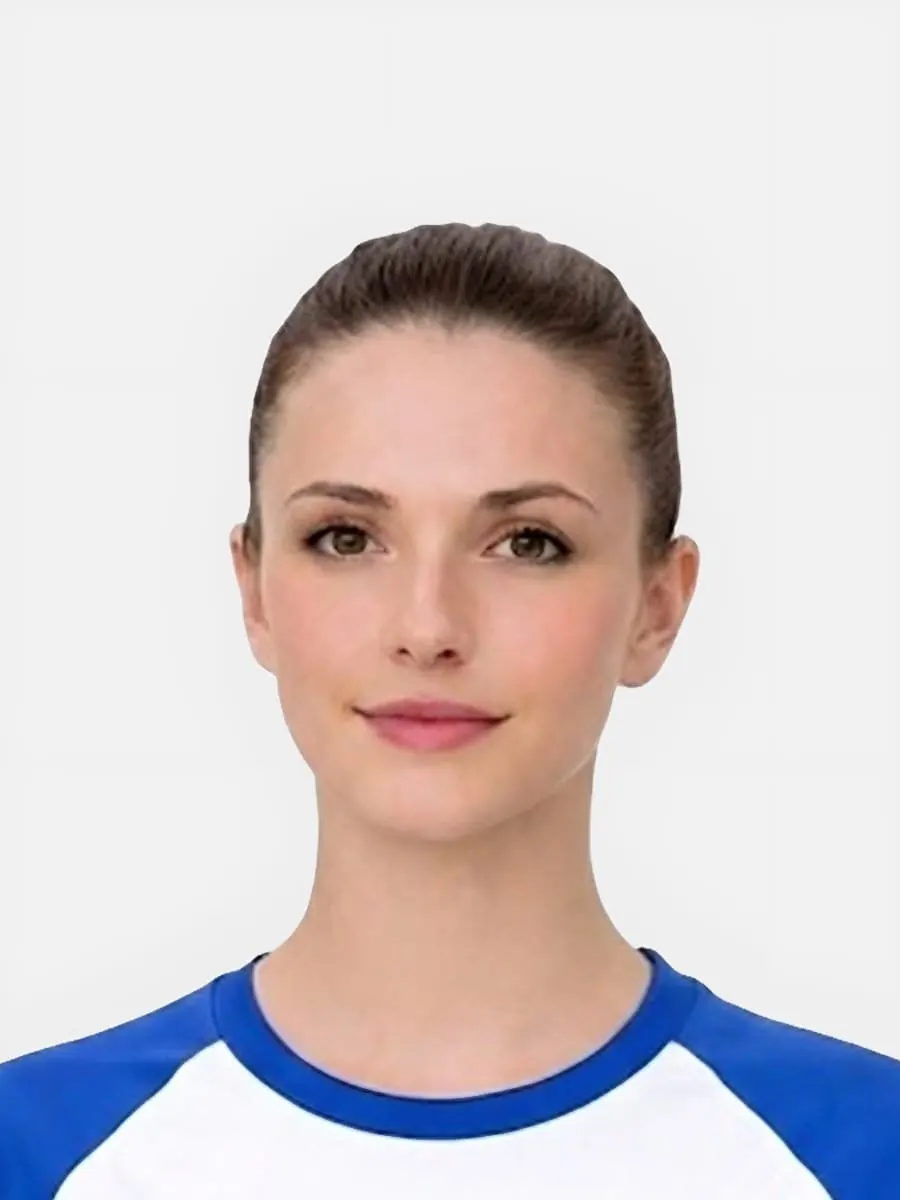
Use this short list to decide whether the current photo is worth continuing with.
Follow this sequence to keep the workflow clear and reduce avoidable mistakes.
Look at the uncropped image first so you know whether there is enough space around the head to resize cleanly.
Ask whether the problem is really crop and head size or whether blur, darkness, or tilt are the bigger issues.
Recrop when the source photo is already strong and the resize is the main fix left to make.
Use the size guide, change-photo guide, or rejection help depending on whether the blocker is crop, recovery, or a failed image.
These are the errors most likely to waste time or trigger a preventable rejection.
The best resize cases are narrow and specific.
The most valuable part of the page is telling users when to stop trying to save the old image.
A resize page should end with the right diagnostic branch.
Resize searches can convert, but only if users understand when resizing cannot rescue a bad source image.
This clarifies a common source of wrong purchases.
Changing pixel dimensions alone does not fix a bad passport photo. The crop, head position, background, and face visibility still matter.
A generic resize tool can change dimensions without checking whether the photo still looks acceptable.
Resize should come after the source image and crop have been checked.
Useful nuance prevents the page from sounding like a sales-only landing page.
Create a commercial bridge for users with real photo problems.
This keeps the page practical and avoids over-promising.
This decision block turns the long-tail query into a clearer action without creating a dead-end page.
Yes, if the source image is strong enough and the main problem is crop or head size rather than blur, lighting, or angle.
Resize when the image is already sharp, well lit, and leaves enough room for a cleaner crop. Retake when the source photo is weak or too tight.
Sometimes, but only when the source image is otherwise usable and the main issue is framing rather than overall quality.
Use the size guide, the change-photo page, or the rejection guide depending on whether the blocker is crop, recovery, or an already-failed image.
Only if the photo is already compliant. Resizing cannot fix blur, shadows, wrong crop or face obstruction.
No. A photo code is a separate output route.
Yes. Check quality and framing first so you do not resize an image that should be retaken.
Only if the photo is already suitable and the route only needs a different size or file format.
Not if the rejection was caused by background, blur, face position, glare or head crop.
Check the application route and whether the source photo is actually good enough.
No. Resizing only changes dimensions. The image still needs correct head position, background, lighting, crop and output format.
Use the upload flow when you already have a source image, or keep exploring the guides if you still need to fix the setup first.