Quick checklist
Use this short list to decide whether the current photo is worth continuing with.
- Confirm whether your question is about rules, image size, digital upload, photo code, or print output.
- Use a clear source photo with enough room around the head and shoulders.
- Check the preview before checkout instead of paying for a weak source image.
- Use official GOV.UK or HM Passport Office instructions for the final application step.
Step by step
Follow this sequence to keep the workflow clear and reduce avoidable mistakes.
- 1
Identify the photo task
Decide whether you need a rule explanation, a digital file, a photo code, or a printable output.
- 2
Check the source image
Look for obvious rejection risks such as blur, strong shadows, glare, tight crop, or busy background.
- 3
Use the preview-first route
Open the checker or main online service and continue only if the prepared preview looks suitable.
- 4
Choose the correct output
Use digital, code, or print-ready guidance based on what the application route actually asks for.
Common mistakes
These are the errors most likely to waste time or trigger a preventable rejection.
- Treating a digital upload file, photo code, and printable sheet as the same output.
- Assuming size alone means the photo will be accepted.
- Uploading a close selfie that leaves no room for a compliant crop.
- Ignoring photo handling, support, and refund information before checkout.
Acceptable photo checklist
This converts broad acceptance wording into useful user decisions.
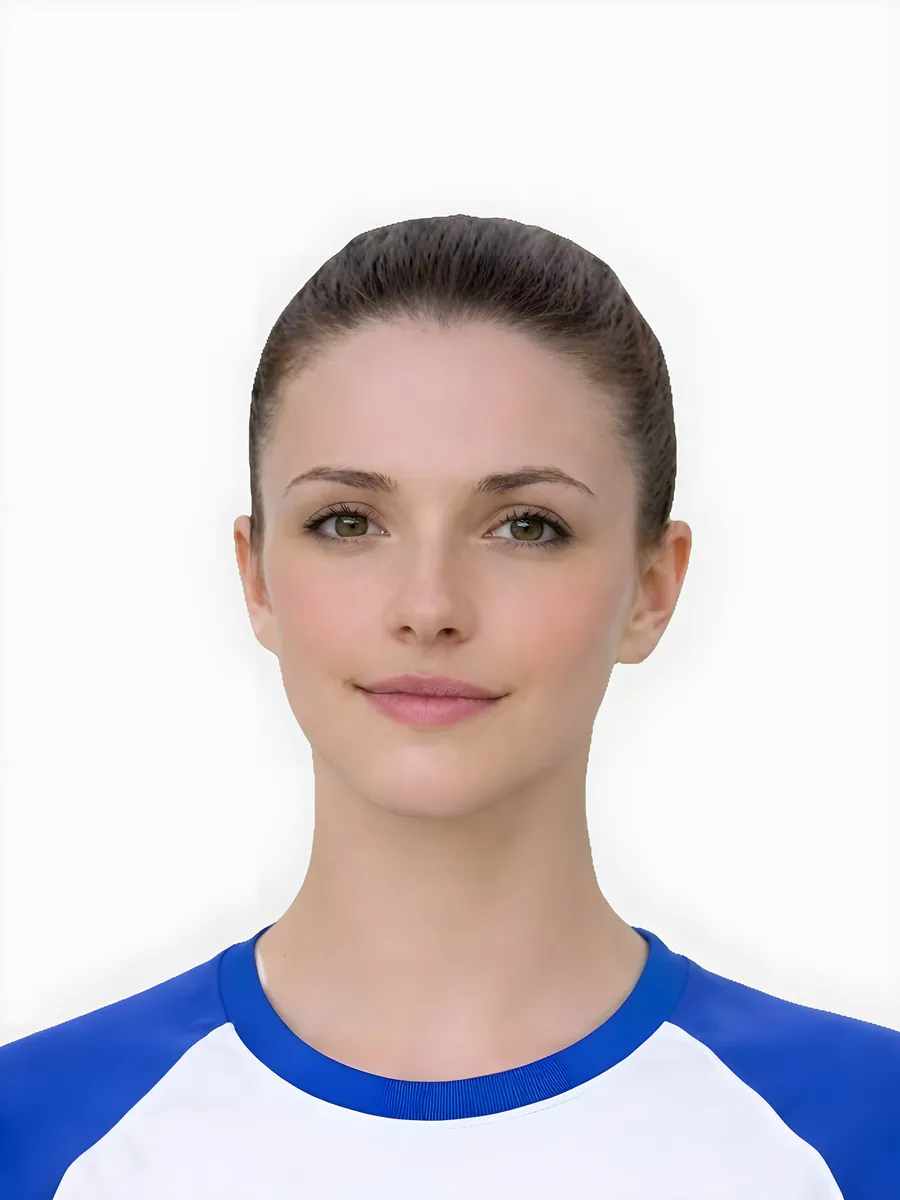
- Clear face, eyes visible and natural head position.
- Plain background without strong shadow or colour cast.
- Sharp original image with enough crop space.
- Correct output route for upload, code or print.
Official sources
Passport-Photo.co.uk is an independent service. Use these primary sources to verify the relevant passport-photo rules or information rights. Linking to them does not imply government endorsement.
FAQ
Does acceptable mean guaranteed approval?
No. It means the photo appears to meet practical visible checks. Official acceptance is outside an independent photo service’s control.
What should I do if a photo is borderline?
Use the checker or retake the photo before paying for a final output.
Prepare your photo before you submit it
Use the upload flow when you already have a source image, or keep exploring the guides if you still need to fix the setup first.